Image Editor — Crop, Resize, Flip & Rotate
See it in action
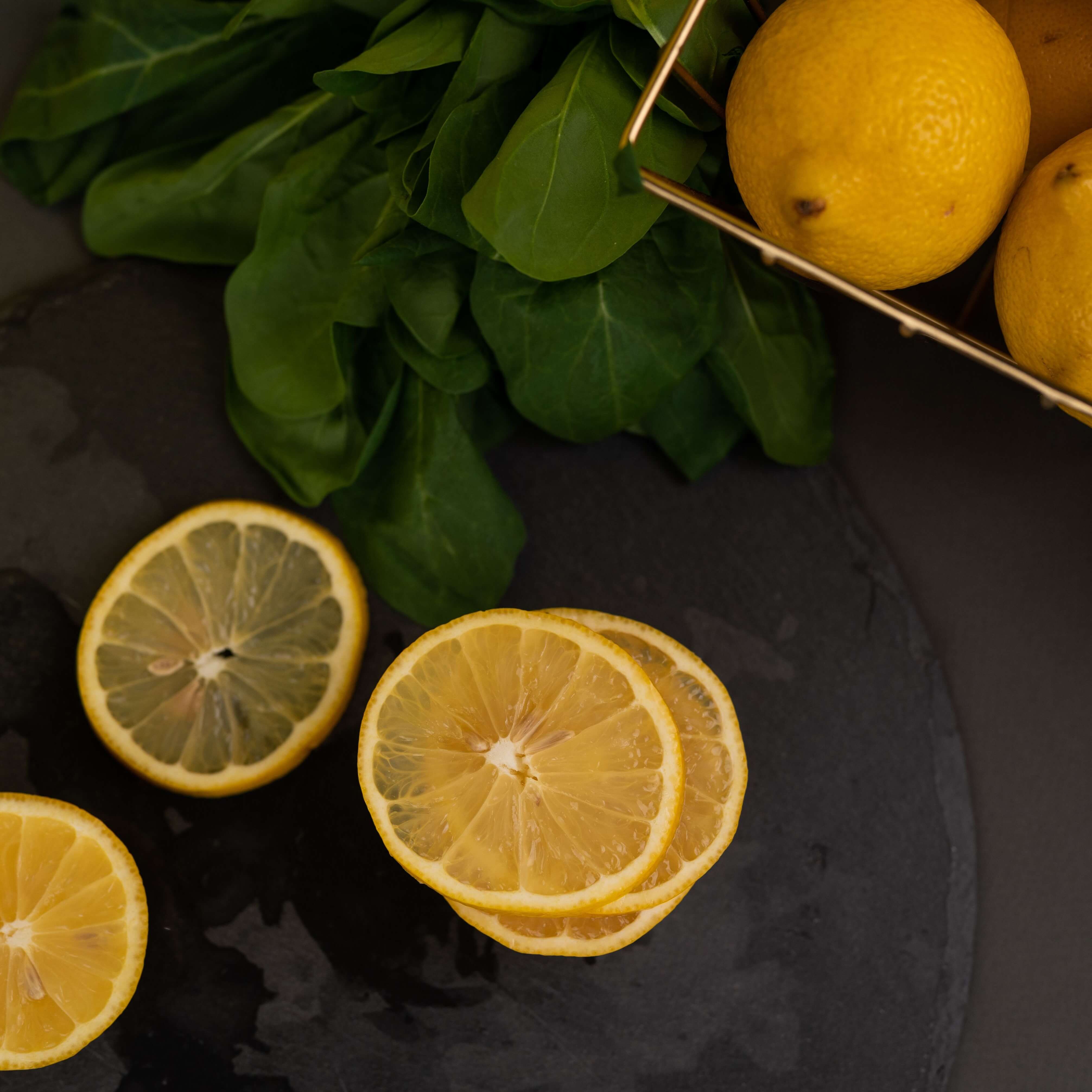
Crop to 1:1
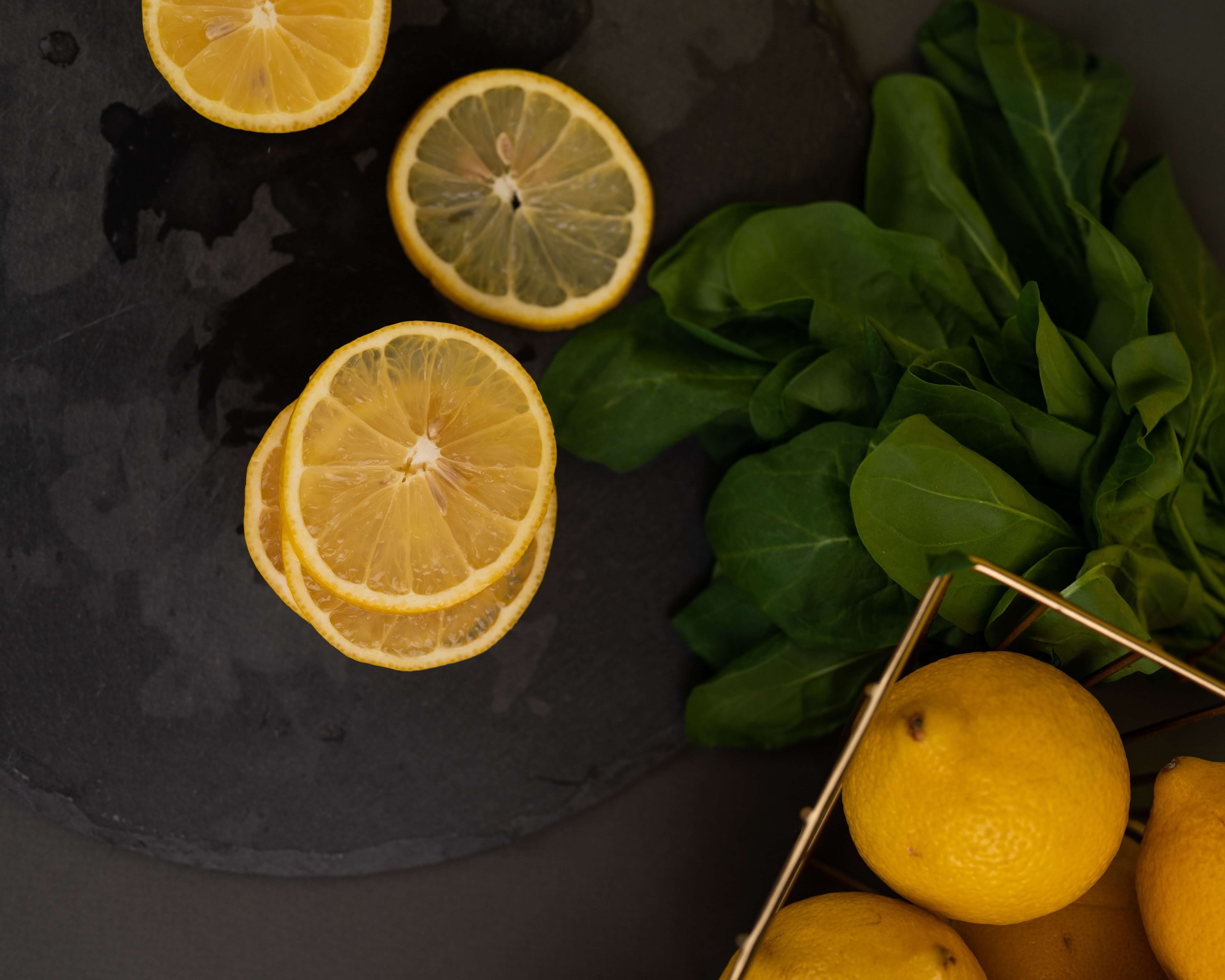
Resize to 4:5
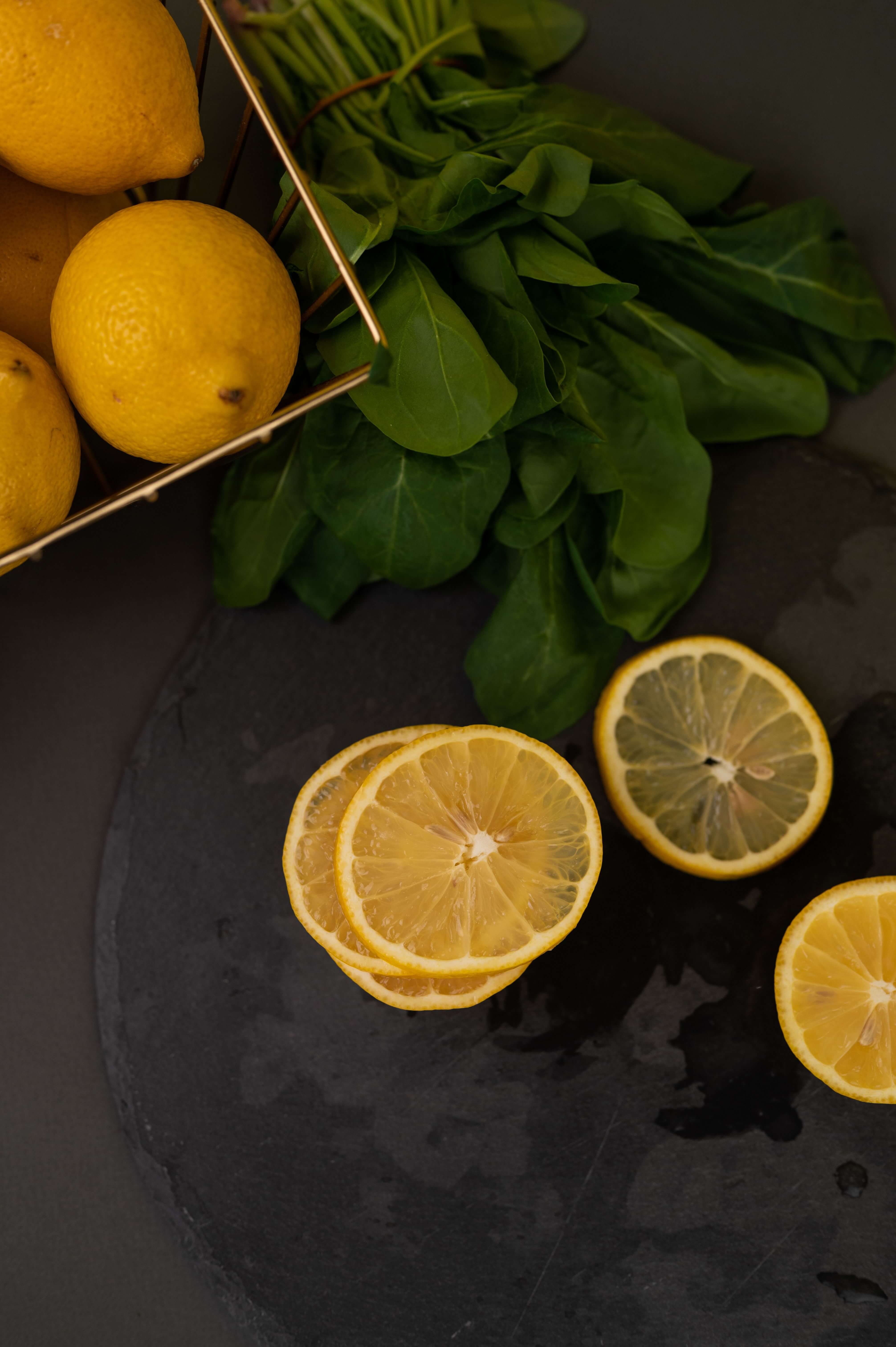
Rotate & straighten
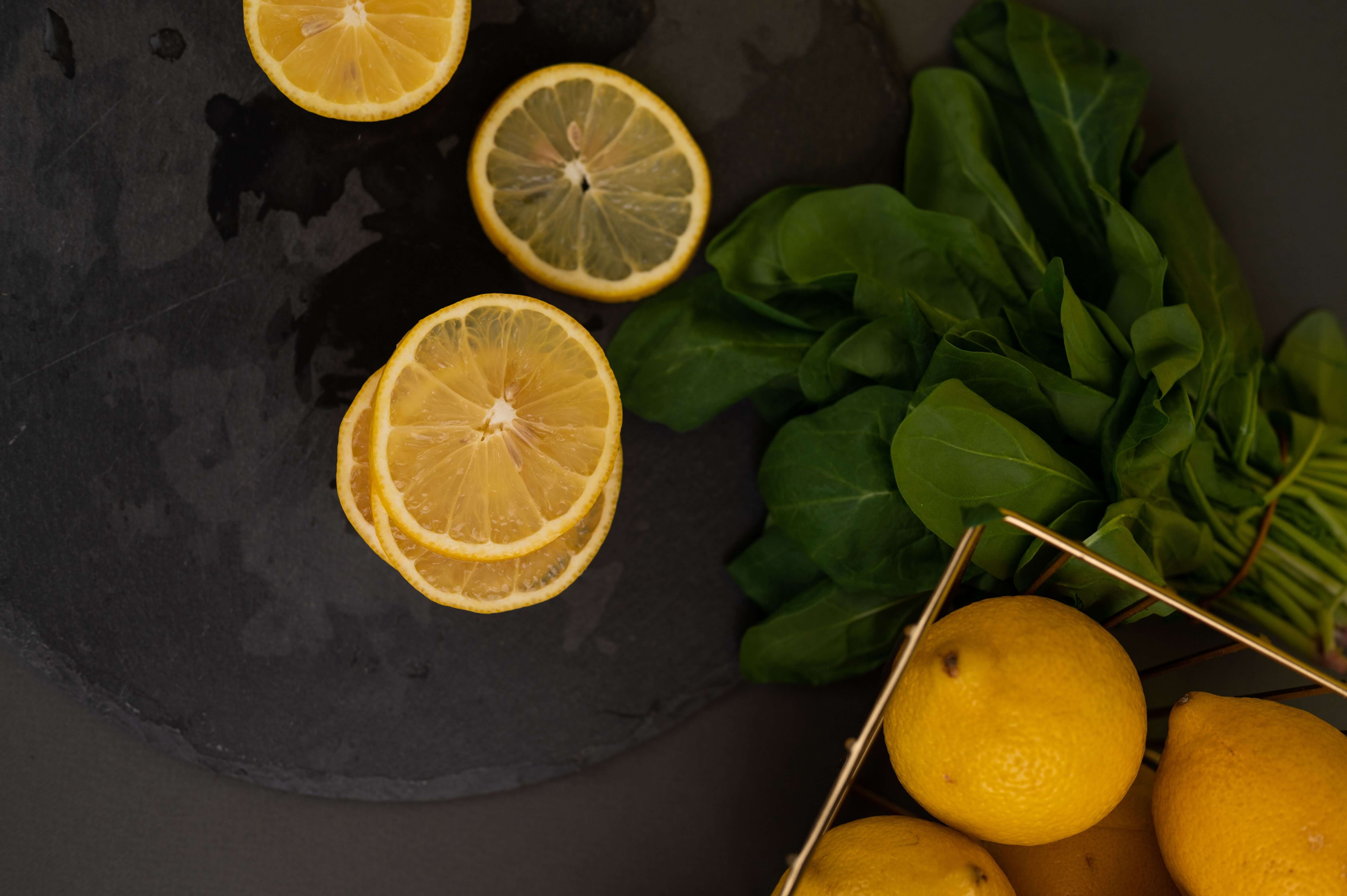
Flip & mirror
Four steps
Upload
Drop an image (JPG, PNG, WebP, or HEIC).
Crop / resize
Crop to a ratio or drag a free selection; set exact pixel dimensions.
Rotate / flip
Rotate 90° left or right, or flip horizontally and vertically.
Download
Save the edited image as a clean PNG or JPG.
What is an image editor?
An image editor changes a photo's dimensions and orientation — crop to a frame, resize to exact pixels, rotate, or flip — without altering the subject itself. It's the everyday tool behind every listing, post, and banner.
Our image editor runs entirely in your browser: no upload, no signup, no install. Drop in a photo, crop and resize it for any marketplace, and download.
Why use it
Crop to ratio
Crop to 1:1, 4:5, 3:4, 16:9, 3:2 — or drag a free selection.
Resize in pixels
Set exact width and height, with the aspect ratio locked or free.
Rotate & flip
Rotate 90° left or right, and flip horizontally or vertically.
Free & in-browser
Edit any image in your browser — no signup, no install, no watermark.
deervo vs other popular image editors.
deervo vs Canva
- No design canvas or account — pure editor
- Faster: upload → edit → download
- Crop to exact ratios in one click
- Runs locally, nothing uploaded
deervo vs Photoshop
- No learning curve or subscription
- No software to install
- One-click crop and resize
- Instant download, no layers
deervo vs Picsart
- Free, no signup
- Crop, resize, rotate, flip in one place
- Works in any browser
- No app to install
deervo vs GIMP
- Simpler than a full photo editor
- Runs in the browser — nothing to install
- Exact pixel resize
- One-click rotate and flip
Frequently asked questions
How do I crop an image?
Upload the image and pick a crop ratio (1:1, 4:5, 3:4, 16:9, 3:2) for an instant centered crop, or switch to Free and drag a selection over the area you want to keep. Click Apply crop and download.
How do I resize an image?
Upload the image, type the new width or height in pixels (the other updates automatically when the ratio is locked), and click Apply resize. The image is rescaled to your exact dimensions and exported as PNG or JPG.
Is the image editor free?
Yes — completely free, no signup, no watermark. Every crop, resize, rotate, and flip runs in your browser, so there's nothing to pay for or log into.
How do I flip an image?
Upload the image and click Flip Horizontal (mirror left-right) or Flip Vertical (mirror top-bottom). The canvas updates instantly and you can download the mirrored image.
How do I rotate an image?
Upload the image and click Rotate Left or Rotate Right to turn it 90° at a time. For a tilted photo, rotate in 90° steps and then crop the edges — all in one editor.
How do I crop an image to a circle?
Crop the image to a 1:1 square first, then use a transparency tool to round the corners. Our editor handles the square crop; for the rounded shape, bring the square PNG into a background remover and export a PNG.
Can I resize a GIF?
This editor handles static images (JPG, PNG, WebP, HEIC). For an animated GIF that must keep its animation after resizing, use a dedicated GIF resizer.
Does editing reduce image quality?
Cropping and rotating are lossless. Resizing is lossless when downscaling; upscaling softens detail because you're adding pixels. Export as PNG for the sharpest result.
What files can I edit?
Upload a JPG, PNG, WebP, or HEIC up to 8 MB. The output is a clean PNG or JPG, depending on which you pick at download.
Is this a Canva or Photoshop alternative?
Yes, for everyday crop, resize, rotate, and flip tasks. deervo is faster for quick edits — no canvas, no layers, no account — and runs entirely in your browser.